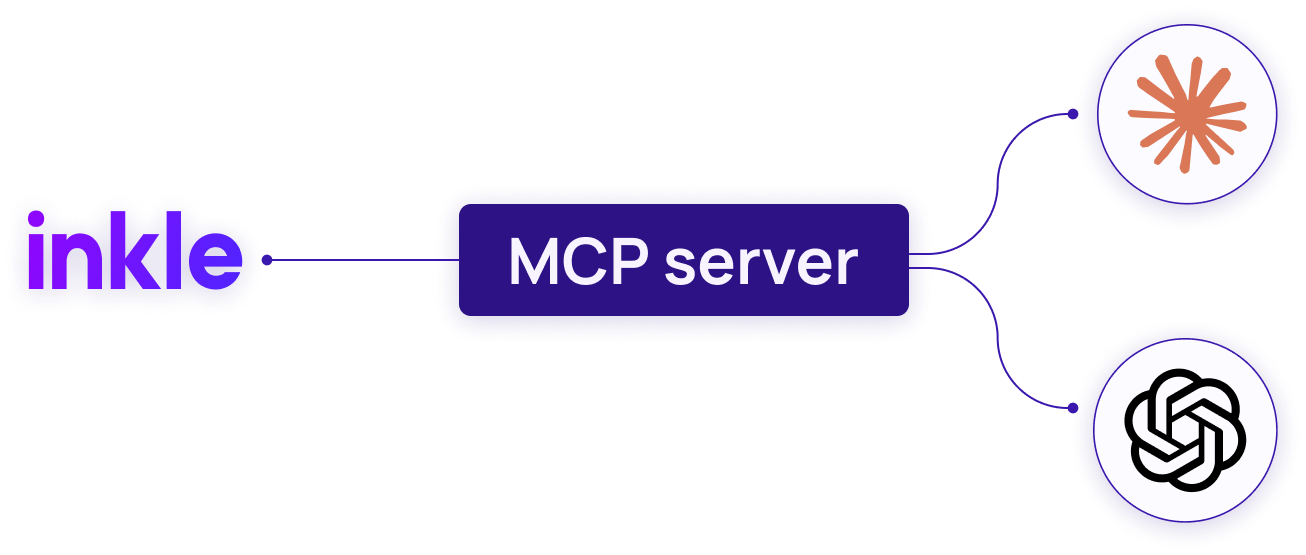
Access your Inkle financial data directly inside Claude or ChatGPT
With Inkle's connector, you can instantly access tax filings, financial reports, invoices, and compliance updates using simple, natural-language questions in Claude or ChatGPT — all without leaving your conversation.
Features
What you can do

Filing status
Check the status of your US tax filings and see upcoming deadlines

Pending actions
Know if any filings have pending payments or outstanding action items

Financial reports
Pull your Profit & Loss, Balance Sheet, and Cash Flow for any time period

Invoice tracking
See which customer invoices are due or overdue and the total amount owed to you
.svg)
Vendor bills
Track vendor bills and know what you owe and when

Financial summaries
Get a financial summary per customer — invoiced, paid, and outstanding amounts

Vendor list
See your full vendor list and total spend per vendor

Multi-entity
Switch between multiple entities if you have more than one company on Inkle
Read‑only by design. The connector can’t make changes to your Inkle account. To complete actions like uploading documents, approving filings, or making payments, please use the Inkle Platform directly.
Setup
How to connect

5 steps
01
Log into your Inkle account. Go to Settings → Select "Connect to Claude" and copy your unique connection URL
02
Open Claude
03
Add custom connector
04
Paste URL
05
Connect
.png)
5 steps
01
Log into your Inkle account. Go to Settings → Select "Connect to ChatGPT" and copy your unique connection URL
02
Create new app
03
Paste the MCP server URL
04
Authenticate
05
Done
Prompts
Once connected, try asking


AI Agents
Ask your AI agent:
"What entities do I have on Inkle?"
"What bills do I have outstanding?"
"Give me a P&L summary for Q1 2026."
"Who are my top vendors by spend?"
"What's the status of my 1120?"
"List all customers with outstanding invoices."
"Show me all my outstanding invoices."
Security
Your data is secure

The connector can only access data tied to your authenticated Inkle account. No data from other accounts is accessible. You can disconnect at any time from Settings → Connectors.

OAuth 2.0 secured

Read-only access

Disconnect anytime
Tool reference
Inkle's tool description table
TOOL
WHAT IT DOES
get_company_entities
Lists all company entities on your Inkle account, including entity name, formation type, state, EIN, and status. Call this first to identify which entity to query.
get_tax_filings
Lists all tax filings for a company entity in a given filing season — covers forms like 1120, 5472, 7004, 1065, and more. Returns each filing's status, deadline, payment amount, and outstanding action items.
get_tax_filing_detail
Returns detailed information on a single tax filing — full workflow progression, assigned CPA, payment breakdown, attached documents with download links, and CPA chat channel URL.
get_reports
Fetches complete financial reports for a company entity — Income Statement (P&L), Balance Sheet, and Cash Flow Statement in a single call. Supports date range filtering and both Cash and Accrual accounting methods.
get_invoices
Retrieves customer invoices for a company entity. Returns invoice number, customer name, amount, payment status, invoice date, and due date. Supports date range filtering and pagination.
get_bills
Retrieves vendor and supplier bills for a company entity. Returns bill number, vendor name, amount, payment status, bill date, and due date. Supports date range filtering and pagination.
get_customers
Returns the customer list for a company entity with a financial summary per customer — total amount invoiced, amount currently due, and amount already paid. Supports keyword search and pagination.
get_vendors
Returns the vendor and merchant list for a company entity. Each entry includes vendor name, merchant type, total transaction amount, and total transaction count. Useful for spend analysis.
ask_inkle
General purpose assistant for questions not covered by the specific tools above. Handles advisory questions about US compliance, bookkeeping, and Inkle's services.
FAQs
I connected the Inkle connector but Claude says it can't find my data. What should I do?
This usually happens when the connection needs a refresh. Go to Claude Settings → Connectors → find Inkle → click the refresh icon. Then start a new chat and try again. If the issue persists, disconnect and reconnect the connector completely.
I'm being asked to log in every time I use the connector. Is that normal?
No — once connected, you should stay authenticated. If you're being asked to log in repeatedly, disconnect the connector from Claude Settings → Connectors, reconnect it, and complete the OAuth login once more. This should persist your session going forward.
Claude is giving me outdated financial data. Why?
The connector pulls live data from your Inkle account at the time of each query. If the data looks outdated, check whether your bank accounts are actively syncing inside your Inkle dashboard. If a bank connection has an error or hasn't synced recently, the data returned to Claude will reflect that. Fix the sync issue in Inkle first, then query Claude again.
Claude says it doesn't have access to a specific piece of information I'm asking about.
The connector covers tax filings, financial reports, invoices, bills, customers, and vendors. It does not cover payroll, internal documents, or support chat history. If you're asking about something outside this scope, Claude will not be able to retrieve it — you'll need to check your Inkle dashboard directly for those details.
I disconnected the Inkle connector. Will it affect my Inkle account?
No — disconnecting the connector from Claude only removes Claude's access to your Inkle data. It does not affect your Inkle account, your data, or any ongoing filings or bookkeeping in any way. You can reconnect at any time from Claude Settings → Connectors.